
Support / UltraVision Pet Combo / Quick Start Guide
Quick Start Guide
What You Need: (click to shop)
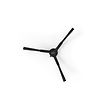
Side Brush

Box Contents
UltraVision Pet Combo™, Charging Station and Charging Bed, Bristled Main Brush, Side Brush (2), Mop Attachment (2), Microfiber Mop (2), Heavy-Duty Mop (2), Spare Dust Bag, Spare Filter, Cleaning Tool, Owner’s Manual, Quick Start Guide, and Warranty Card.
UltraVision Pet Combo's First Clean
Before starting, remove any protective pieces from UltraVision’s bumper, side brush port, and station.


1. Prepare UltraVision Pet Combo and power him on
First, install UltraVision's side brush. Place the side brush over the empty socket on the bot. Press down to click and lock it in place.
Place the mop cloths over the mop attachments and secure them on their Velcro side.
Insert the mop attachments into the connection slots under UltraVision. The magnets will connect and hold the mop attachments firmly in place.
Power UltraVision on by pressing and holding the GO! button until the screen lights up.


2. Prepare UltraVision Pet Combo's charging station
Place the charging station in a central area with a strong Wi-Fi signal, on a hard, flat surface, 10 feet or more away from edges or stairs, and with plenty of space around it for easy docking.
Install the charging bed by aligning the sockets under the station with the charging bed's pegs, then lowering the station onto the bed.
Your setup is now complete! The charging station’s LED indicator shines blue to confirm it is ready for UltraVision to dock.
If the light is red, check the dust bag and disposal vent.


3. Charge UltraVision Pet Combo
To send UltraVision to charge, press the CHARGE button on your bot and watch him dock.
You can also charge UltraVision manually. Place him on his charging bed with the metal nodes on his back resting against the plates on the station and allow him to fully charge.
Battery indicator modes:
- Low Battery: The battery indicator blinks rapidly
- Finding Station: The battery indicator blinks
- Charging: The battery indicator blinks slowly
- Fully Charged: The battery indicator shines solid
Important note:
- UltraVision always returns to his charging station after cleaning. To increase UltraVision's chance of finding his station, don't change its location once your bot maps the space.
4. Connect UltraVision Pet Combo to Wi-Fi
Download the bObsweep mobile app on your iOS or Android device.
Sign up to create an account, and connect the app to your Amazon Alexa or Google Home device for voice control.
Follow the in-app instructions to connect UltraVision to Wi-Fi and gain access to his full suite of features and important software updates.

5. Map the floor
Equipped with Room-to-Room™ cleaning technology, UltraVision explores, maps, and cleans your home in straight lines, avoiding furniture and obstacles along his path.
For the best mapping and navigation results, keep all doors open and remove any clutter before your bot starts.
If you prefer not to wait for cleaning and mapping simultaneously, open the Map page, then tap Swift Map to let your bot explore and map the floor in just a few minutes. This option works especially well if your space is large or has a complex layout.
Important notes:
- To avoid distorting the map, do not pick up UltraVision while he’s mapping.
- Also avoid moving the charging station after mapping is complete.

Browse Support Guides


Still need help? We’re always eager to chat!


.png)


